KNOVIUM - KNOWLEDGE BASE & LMS

Build, manage, and deliver knowledge and learning experiences directly within Bitrix24

  • Create structured knowledge bases with articles, spaces, and folders
  • Build courses, quizzes, and assignments with reusable learning content
  • Track learner progress, assessments, and completion through comprehensive reports

About KNOVIUM

Knovium is a knowledge management and learning management solution that combines documentation, employee training, and course management into a single workspace within Bitrix24.

Organizations can create structured knowledge bases, publish company documentation, build learning courses, manage quizzes and assignments, track learner progress, and generate detailed learning reports from one centralized platform.

The application supports multiple user roles, reusable learning content, course assignments, reporting, and knowledge sharing, making it suitable for employee onboarding, compliance training, product documentation, internal knowledge management, and continuous learning.

Key Features

  • Create structured knowledge bases using Spaces, Folders, and Articles
  • Build multi-section courses with reusable learning activities
  • Design quizzes using reusable question banks
  • Assign courses to individuals or groups
  • Track learner progress, scores, completion rates, and overdue training
  • Manage learners, instructors, and administrators
  • Generate detailed learning and engagement reports
  • Publish knowledge articles for internal or public access
  • Configure workspace security, storage, notifications, integrations, and billing
  • Maintain a complete audit history of workspace activities

Typical Use Cases

  • Employee onboarding
  • Internal company documentation
  • Product and process documentation
  • Compliance and policy training
  • Certification programs
  • Department knowledge sharing
  • Continuous employee learning


Benefits

  • Keep organizational knowledge in one place
  • Deliver structured learning experiences
  • Monitor learner performance and completion
  • Reduce repetitive training efforts through reusable content
  • Improve visibility into learning progress and engagement

Solutions
that work for you.

HOME

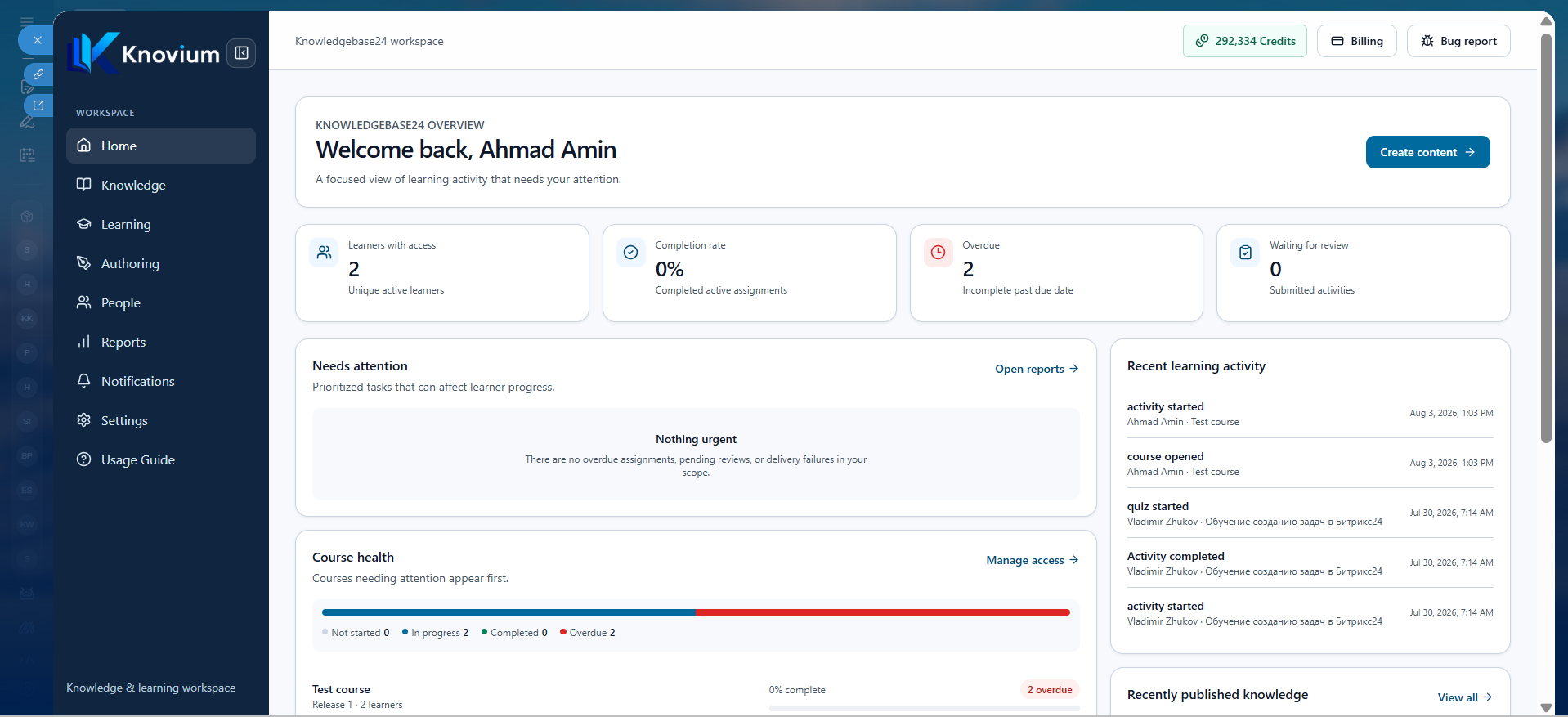
The Home dashboard provides an overview of workspace activity, learner progress, and important updates.

Dashboard Overview
The dashboard displays:

  • Learners with access
  • Completion rate
  • Overdue learning
  • Waiting for review
Need Attention
Displays prioritized items that may require immediate action, such as overdue learning or pending reviews that could affect learner progress.

Recent Learning Activity
Shows recently completed learning activities and learner actions.

Recently Published Knowledge
Displays the latest published knowledge articles.

Notifications
Highlights important updates, such as:
  • New course assignments
  • Learning reminders
  • System notifications

Course Health
Provides a summary of course status, including:

  • Not Started
  • In Progress
  • Completed
  • Overdue

Knowledge

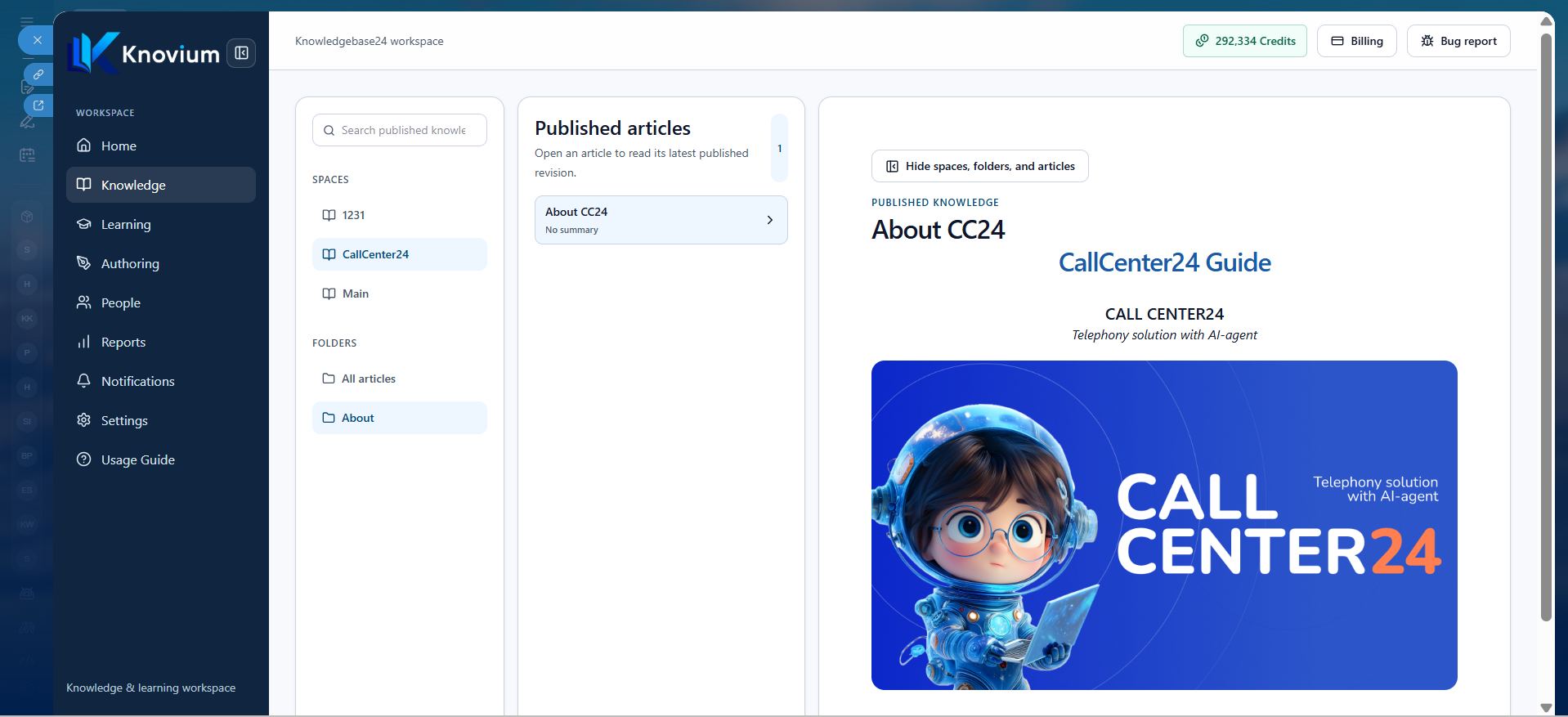
The Knowledge section contains all published knowledge articles available within the workspace.

Navigation
Knowledge is organized using the following hierarchy:

  • All Articles
  • Spaces
  • Folders
  • Articles

Spaces
A Space is the highest level of organization, such as:

  • Company Handbook
  • Product Documentation
  • Human Resources
  • Sales Knowledge
Features
  • Browse all published articles
  • Expand or collapse Spaces and Folders
  • Hide or show the navigation panel
  • View articles in an expanded reading layout

Learning

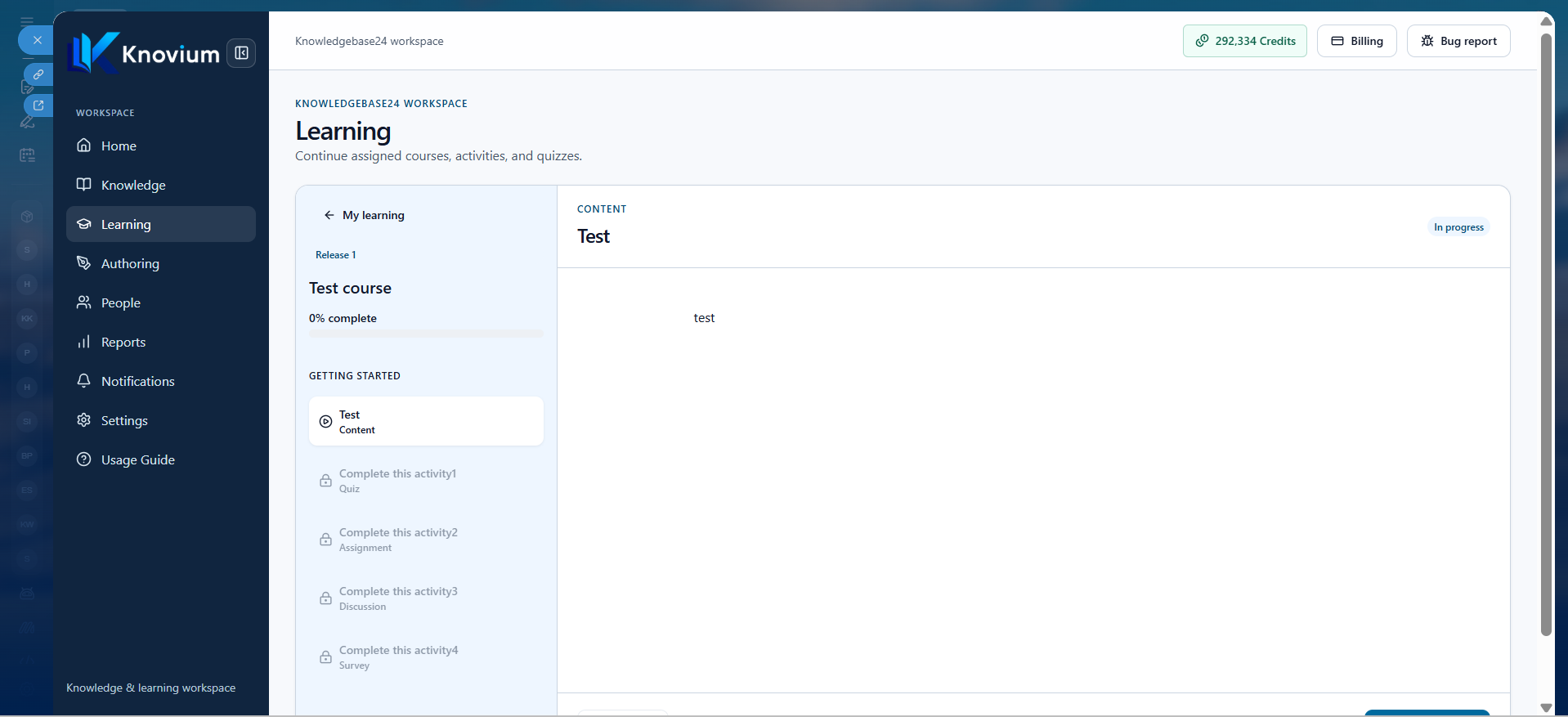
The Learning section displays all learning content assigned to the current user.

Features
Users can view:

  • Assigned courses
  • Learning activities
  • Quizzes
Only content specifically assigned to the learner is displayed.

Within a course, learners can:
  • Browse course sections
  • View learning activities
  • Complete activities
  • Mark activities as completed (when allowed)
  • Take quizzes
  • Monitor overall course progress
Course Status
  • Not Started
  • In Progress
  • Completed

AUTHORING

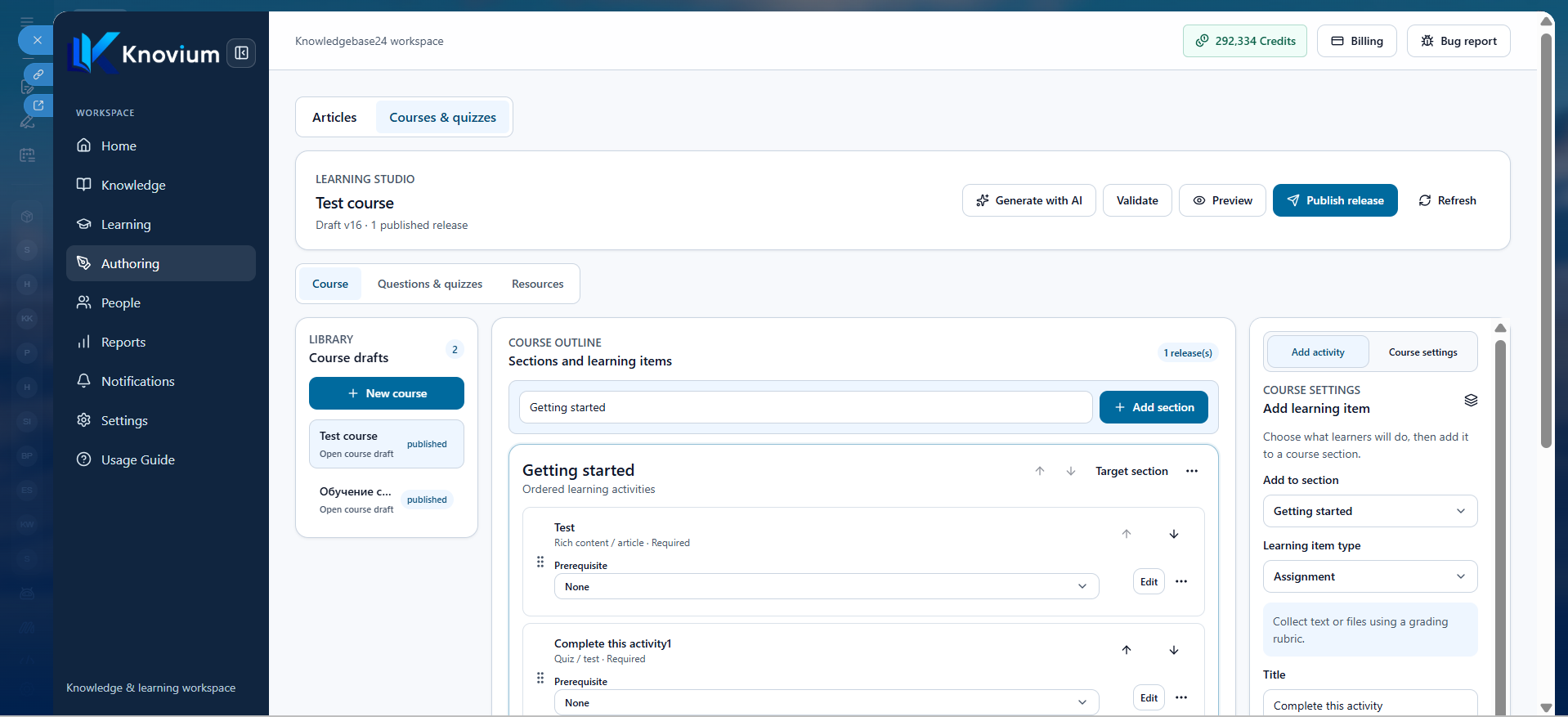
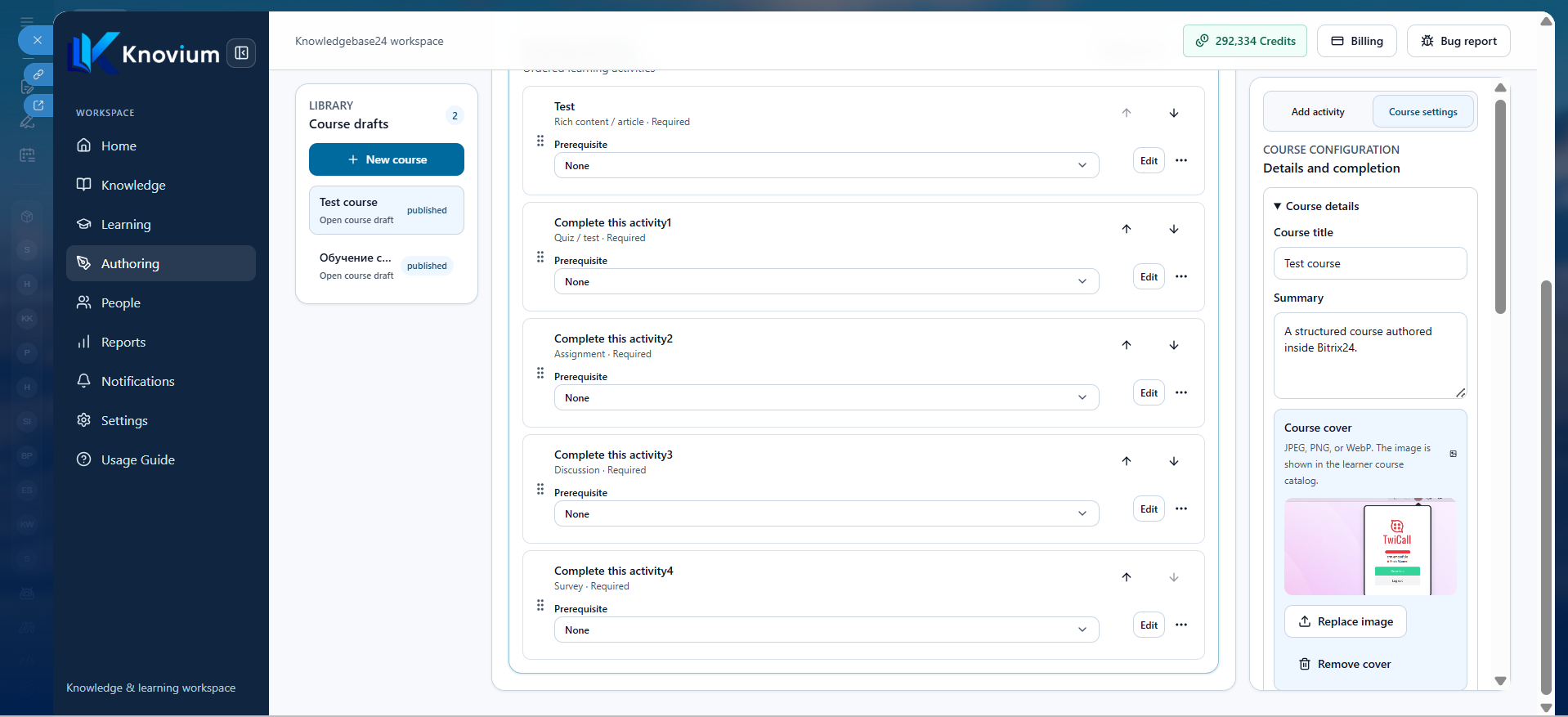
The Authoring section is used to create and manage knowledge content, courses, quizzes, and reusable learning resources.


It consists of two primary modules:
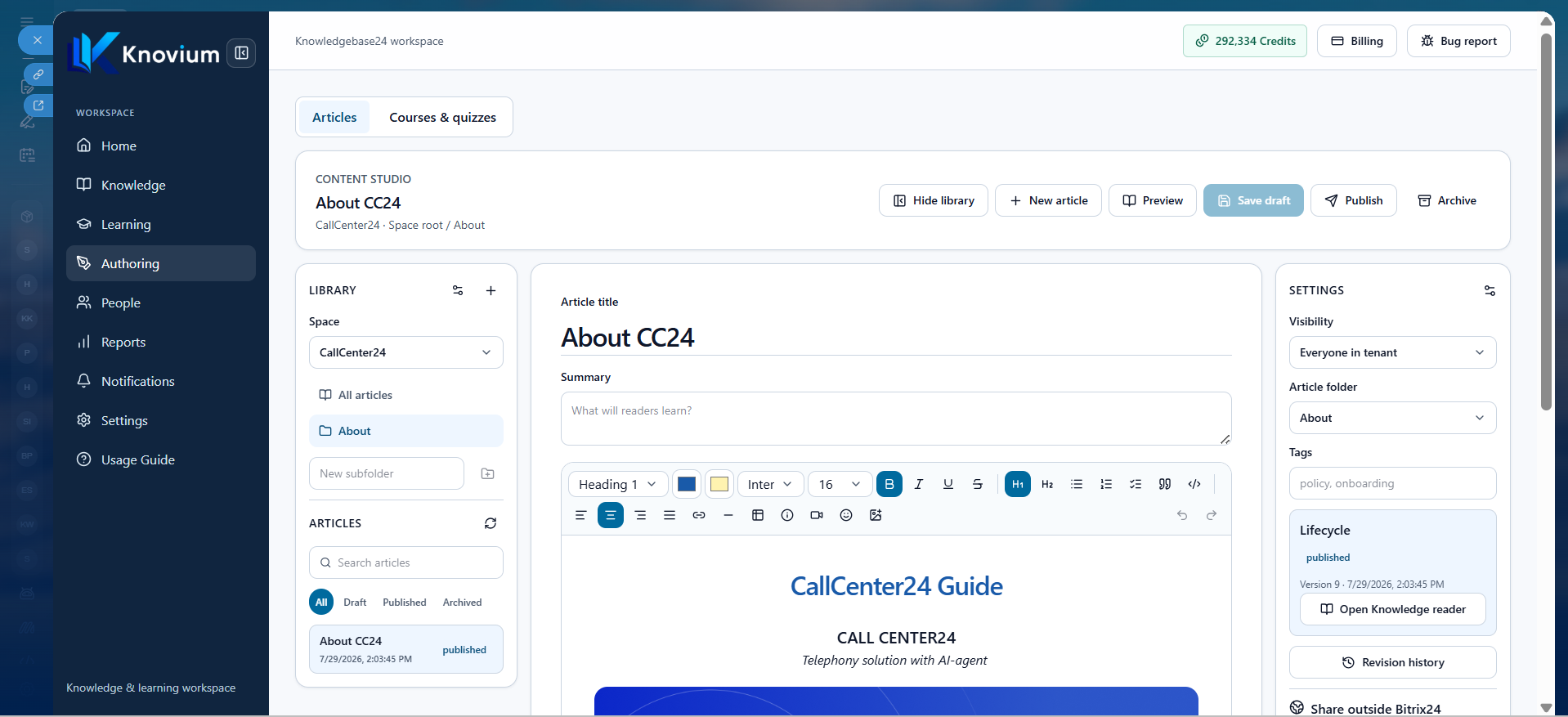
  • Articles
  • Courses & Quizzes

Articles

Create and organize knowledge articles.

Structure
Knowledge is organized as:

  • Spaces
  • Folders
  • Articles

Spaces
Spaces represent top-level collections, for example:

  • Company Handbook
  • Product Documentation
  • Policies

Article Editor
Each article may include:

  • Title
  • Summary (optional)
  • Rich text content

Editor Features
The editor supports:

  • Headings
  • Paragraphs
  • Lists
  • Text formatting
  • Font colors
  • Font sizes
  • Text alignment
  • Emojis
  • Tables
  • Images
  • Videos
  • PDF attachments
  • File attachments
  • Additional rich content options

Courses & Quizzes

The Courses & Quizzes module is divided into three sections:

  • Courses
  • Questions & Quizzes
  • Resources
I. Courses
Courses consist of one or more learning sections, each containing multiple learning activities.

Course Structure
  • Course
  • Section
  • Learning Activities
Learning Activity Types
Activities may include:
  • Rich Content / Article
  • Document or File
  • External Link
  • Quiz or Test
  • Assignment
  • Discussion
  • Survey
  • Attendance
Activity Configuration
  • Each activity allows:
  • Activity title
  • Description
  • Media
  • Supporting content
  • Required for completion
  • Save as reusable template

Activity Settings
Configure:

  • Article Revision Policy
    Follow Live Published Article
    Pin Selected Revision
  • Completion Rule
    Opened
    Explicit Completion
    Minimum Dwell Time
  • Availability date (optional)

Courses

Course Settings
Configure:

  • Course title
  • Summary
  • Cover image
  • Category
  • Estimated duration
  • Tags

Learner Access
Publishing a course does not automatically make it available.
Learners receive access only through:

  • Course assignments
  • Manual access grants

Navigation

  • Free Navigation
  • Sequential Navigation
Completion Mode
  • Required Activities and Score
  • Score Only

Assessment

  • Passing score
  • Attempt policy
    Unlimited
    Limited
    Single Attempt

Feedback Policy

  • Immediate
  • Instructor Release
  • After Completion
Late Completion
  • Allow and Mark Late
  • Allow
  • Reject

Availability
Configure:

  • Start date
  • End date

Access Management
Grant course access to selected learners or groups.
Questions & Quizzes

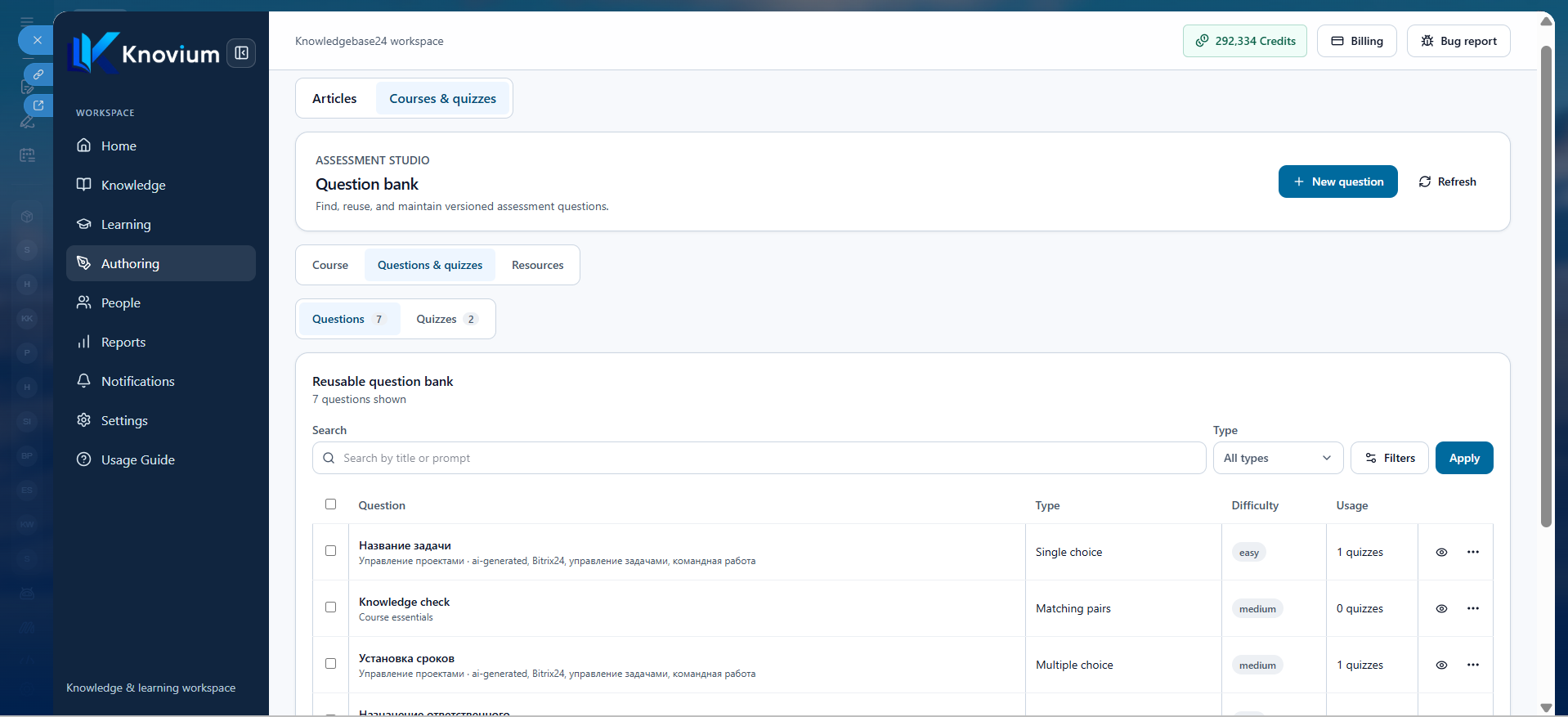
This section contains reusable question banks and quiz management.

I. Questions
Questions can be created once and reused across multiple quizzes.

Supported Question Types

  • Single Choice
  • Multiple Choice
  • Ordering
  • Matching Pairs
  • Open Response
  • Additional question formats
Question Configuration
  • Question name
  • Question content
  • Response options
  • Correct answers

Quizzes
Build assessments using reusable questions.

Details
Configure:

  • Quiz name
  • Instructions
Questions
  • Add existing questions
  • Remove questions
  • Reorder questions

Scoring
Configure:

  • Time limit
  • Number of attempts
  • Passing score
  • Navigation mode
    Back and Forward
    Forward Only
    All Questions on One Page

  • Optional settings:
    Shuffle questions
    Shuffle answer choices
Access
Configure:
  • Availability window
  • Feedback visibility
    After Submission
    After Quiz Closes
    Never
  • Correct answer visibility
    After Submission
    After Quiz Closes
    Never
  • Late submission policy
    Allow and Mark Late
    Reject After Closing

Learning Paths
Configure optional branching paths that direct learners to another activity based on:
  • Correct responses
  • Incorrect responses
Circular paths are automatically prevented when saving.

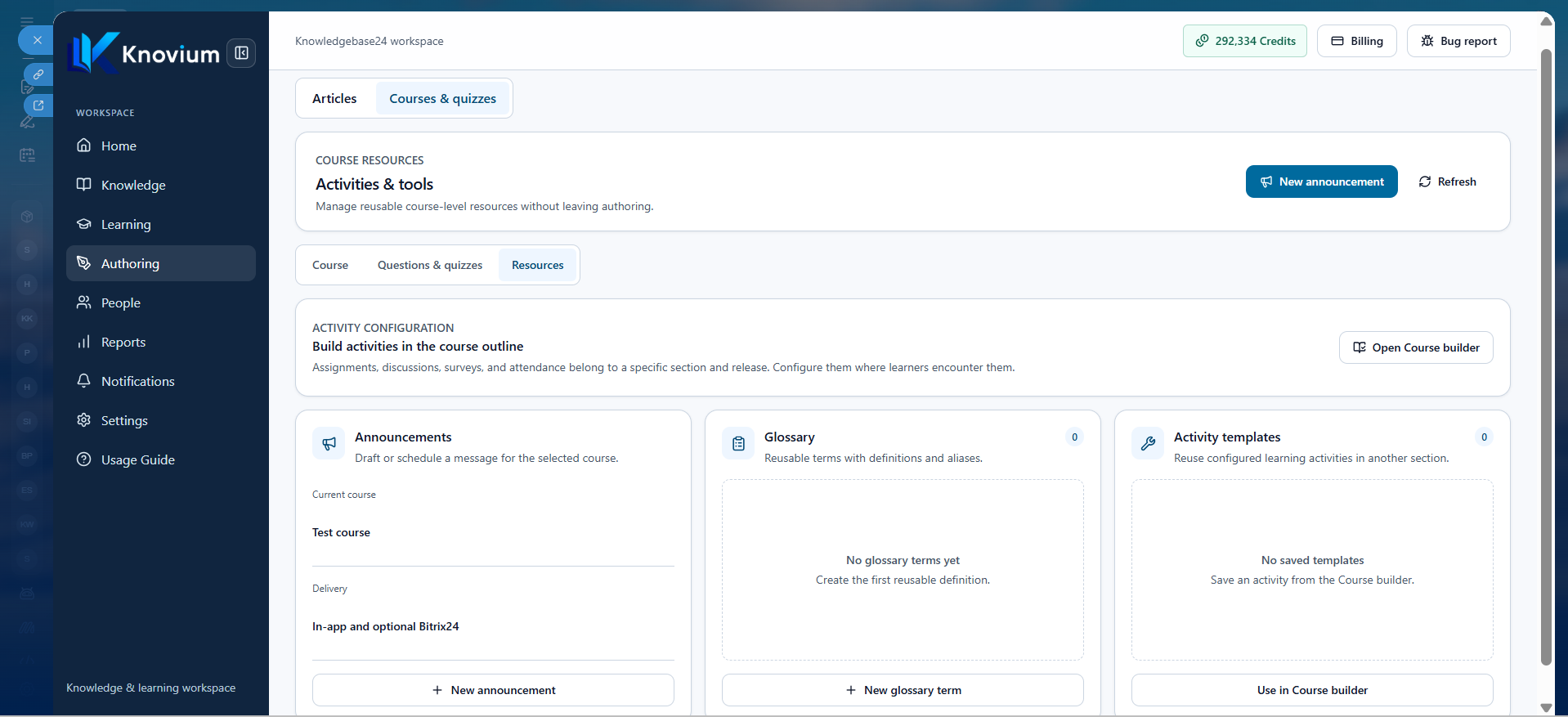
Resources

Reusable resources that support course creation.

Announcements

  • Draft announcements
  • Schedule announcements
  • Publish messages to course participants

Glossary
Create reusable:

  • Terms
  • Definitions
  • Aliases

Activity Templates
Create reusable learning activities that can be inserted into future courses.

Resources simplify course management by allowing instructors to reuse common content and communication across multiple courses.
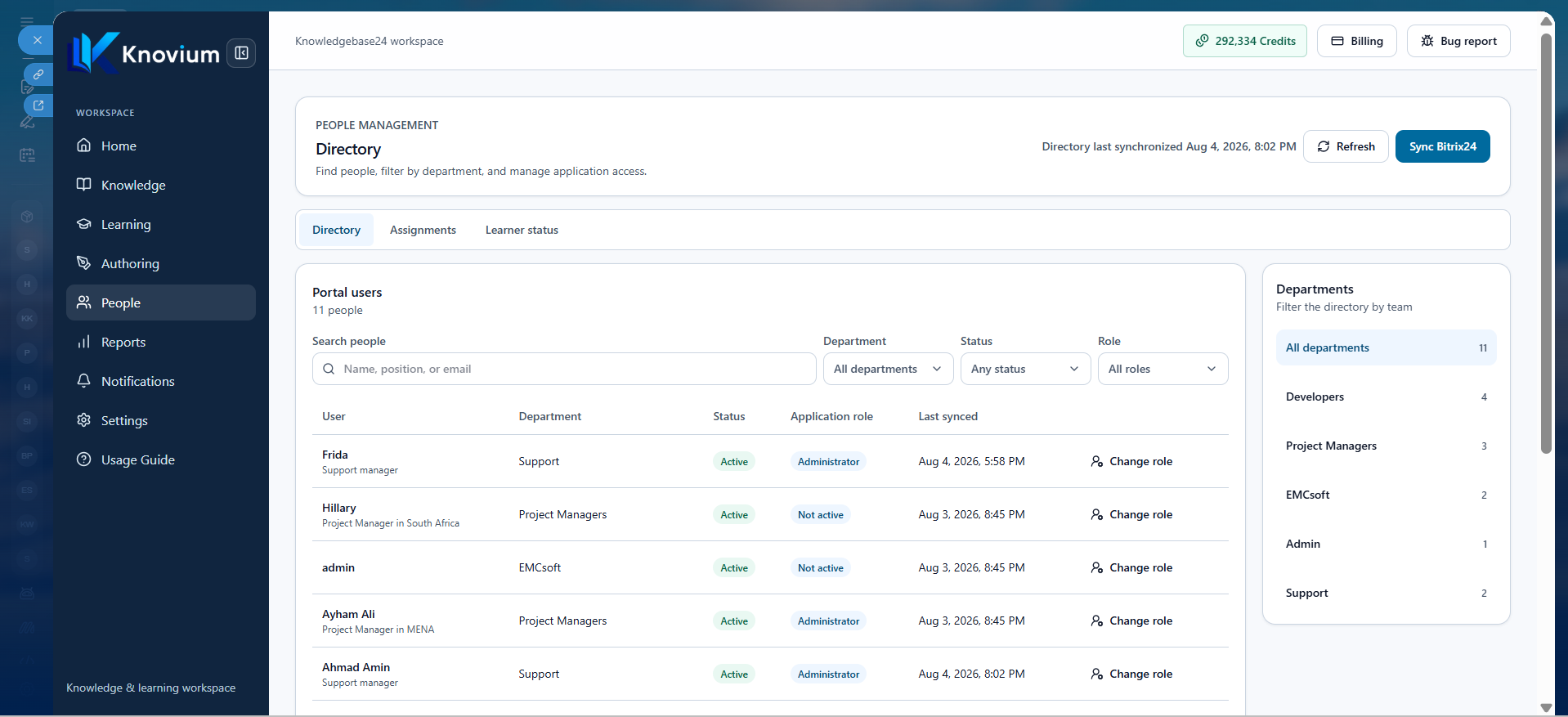
People

Manage users, assignments, and learner progress.

Directory
Assign workspace roles.

Available roles include:

  • Administrator
  • Instructor
  • Learner
  • Not Active

Assignments
View and manage course assignments.

Assignment information includes:

  • Assignment name
  • Assigned audience
  • Due date
  • Membership status

Learner Status
Monitor learner performance across courses.

Track:

  • Progress
  • Completion
  • Scores
Available filters:
  • Course
  • Status
  • Due state

Reports

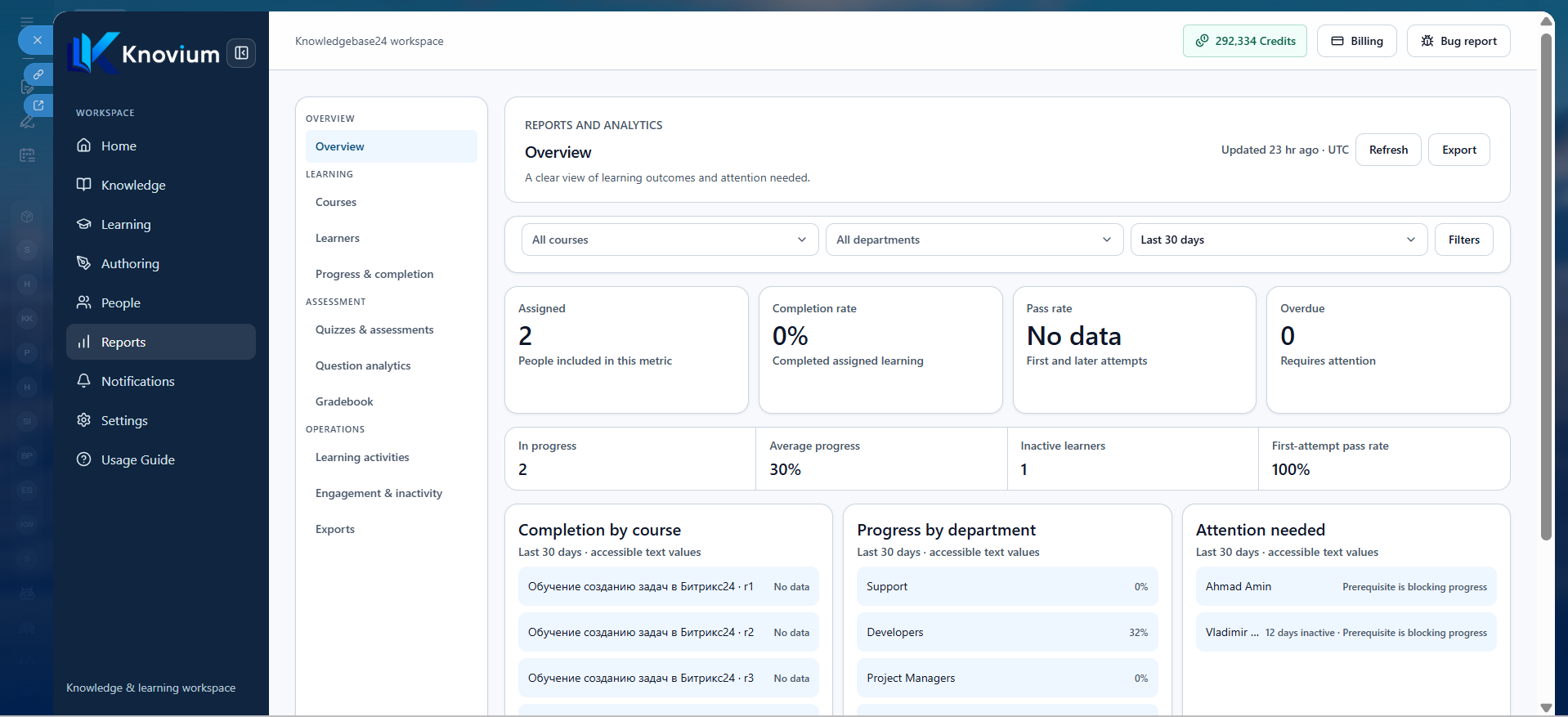
The Reports section provides detailed analytics across the entire workspace.

Dashboard Metrics

Reports include:

  • Assigned learners
  • Completion rate
  • Pass rate
  • Overdue learners
  • In Progress
  • Average progress
  • Inactive learners
  • First-attempt pass rate
Additional reports include:
  • Course completion
  • Department progress
  • Items requiring attention
Report Categories
Reports are organized into dedicated tabs.

Courses

Course performance and enrollment statistics.

Learners

Individual learner activity and completion.

Progress & Completion

Track learner progress and completion trends.

Quizzes & Assessments
Quiz attempts, scores, and pass rates.

Question Analytics
Evaluate individual question performance.

Gradebook
Review learner grades across courses.

Learning Activities
Activity completion and engagement.

Engagement & Inactivity
Monitor participation and inactive learners.

Exports
Generate downloadable reports using active report filters.

Features include:
  • Background report generation
  • Recent export history
  • Automatic export expiration

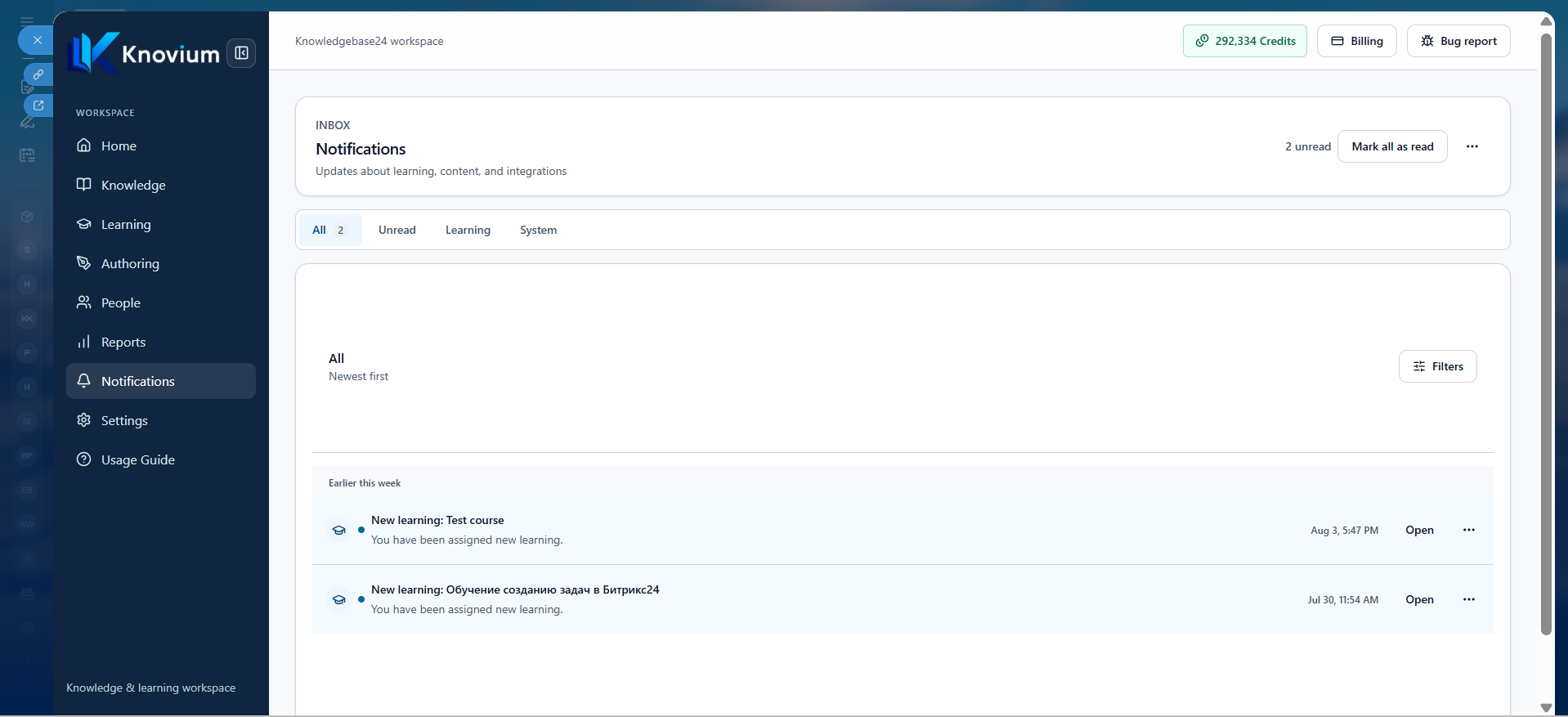
Notifications

View updates related to learning, content, and workspace events.

Notification Categories

  • All
  • Unread
  • Learning
  • System
Filters
Filter notifications by date or time period.

Notifications keep users informed about learning assignments, system updates, and important workspace events.

Settings

Configure workspace integrations, security, storage, billing, and administration.

I. Integrations
Manage the Bitrix24 connection.
Features

  • Connection information
  • Synchronization status
  • Available integration capabilities
Connection details are displayed without exposing credentials or access tokens.

II. Sharing & Security
Manage public access and content sharing.

Public Knowledge Sites
Publish selected knowledge Spaces as standalone websites.

Sharing Settings
Configure:
  • Public links
  • Link expiration defaults
  • Trusted media hosts
Changes apply to newly generated links and embedded media.

III. Storage & Uploads
Manage workspace storage and upload policies.

Storage Information
View:
  • Storage usage
  • File count
  • Reserved upload space
Completed uploads contribute toward monthly billing, while reserved upload space does not.

Upload Policy
Configure:
  • File size limits
  • Accepted file types
Changing upload limits does not affect existing files.

IV. Notifications
Configure administrator notification delivery.
Features
  • Verify notification channel
  • Receive integration alerts
  • Receive critical workspace notifications through Bitrix24
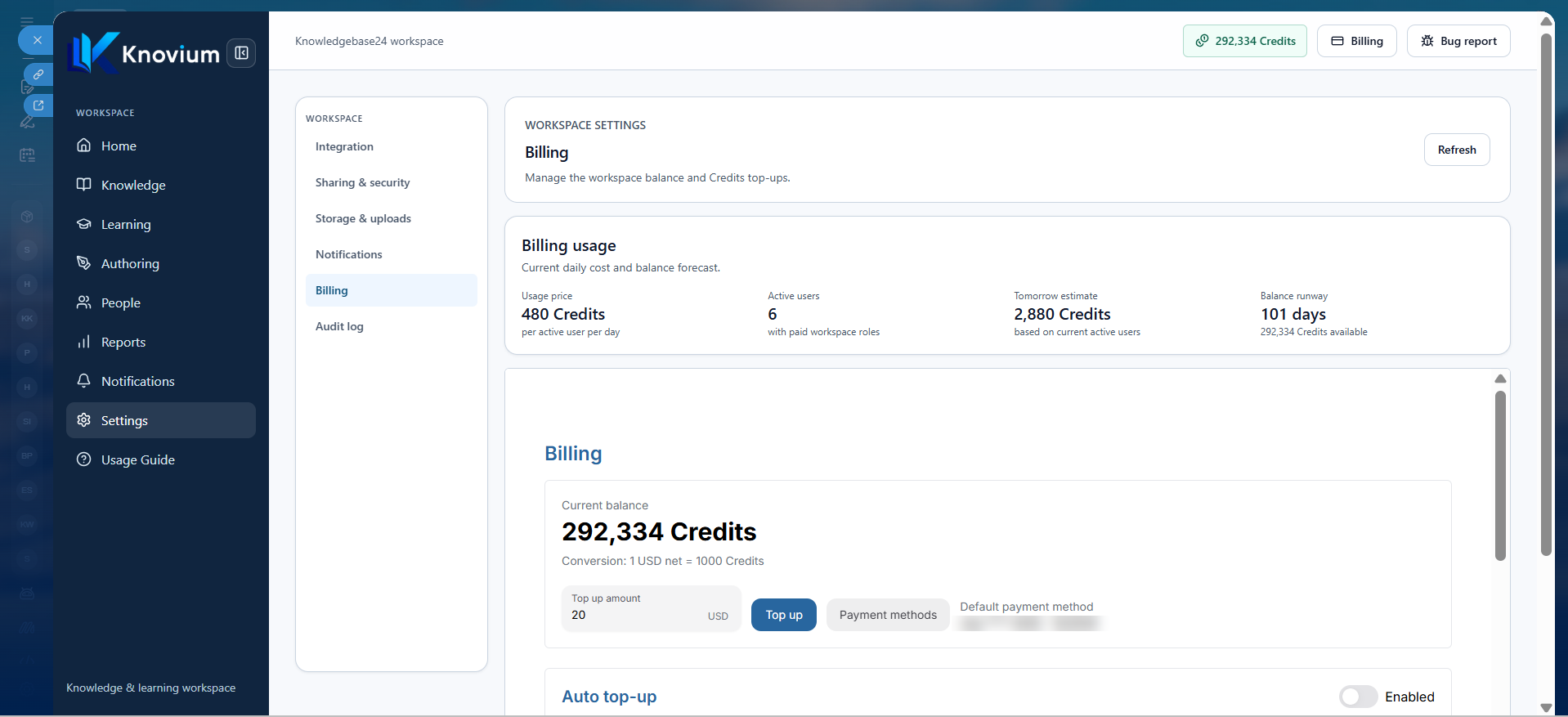
V. Billing
Manage workspace credits, payments, and usage.
Billing Overview
View:
  • Current balance
  • Daily usage
  • Balance forecast
  • Active users
  • Remaining balance duration

Pricing
480 Credits per active user per day
1 USD (Net) = 1,000 Credits

Additional Features

  • Credit top-ups
  • Recent transactions
  • Invoice history
  • Download invoices
VI. Audit Log
Track security, administrative, and content-related events.

Features
Search events using:
  • Audit event
  • Action category
  • User
  • Origin
  • Date From
  • Date To
Sensitive information is never displayed.

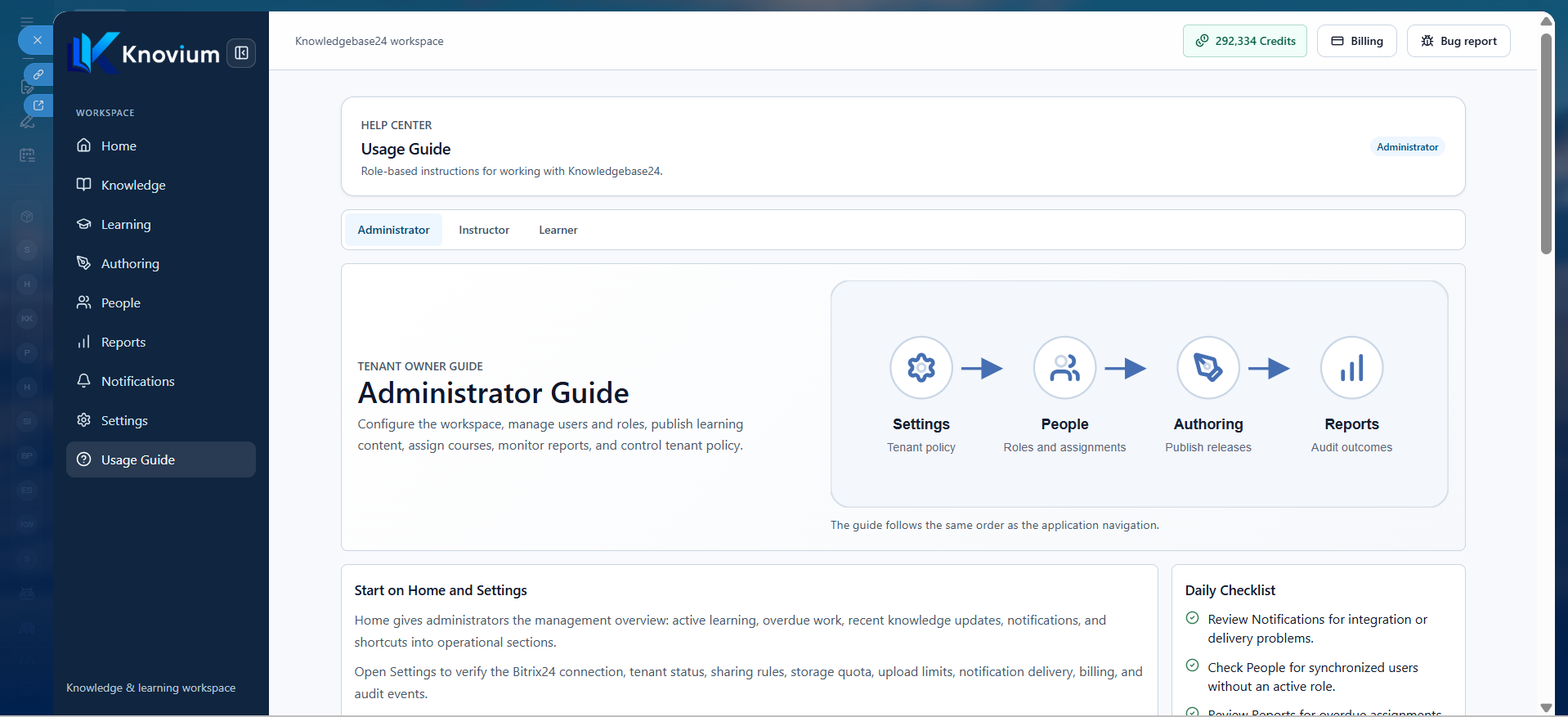
Usage Guide

The Usage Guide provides role-specific documentation to help users understand the application.

Administrator Guide
Learn how to:

  • Configure the workspace
  • Manage users and roles
  • Publish knowledge
  • Assign courses
  • Review reports
  • Configure workspace policies
Instructor Guide
Learn how to:
  • Create articles
  • Build courses
  • Publish learning content
  • Assign courses
  • Review learner submissions
  • Support learners throughout their training
Learner Guide
Learn how to:
  • Access assigned courses
  • Complete learning activities
  • Take quizzes
  • Review feedback
  • Use the knowledge base as a reference

How the application is installed


Go to Bitrix24 marketplace


Enter your contact details


Install KNOVIUM - Knowledgebase & LMS


Launch Knovium and start creating knowledge bases, assigning courses, and tracking learner progress directly within Bitrix24


If you need help installing

Knovium - Knowledgebase & LMS,

please fill out the form below.

Send Request Now!